12-in-1 USB-C Docking Station T-230
The 12-in-1 USB-C Docking Station T-230 provides a versatile connectivity solution for compatible laptops, PCs, and MacBooks.A docking station can turn a single compatible USB-C connection into a more versatile workstation.
The 12-in-1 USB-C Docking Station T-230 is designed to provide this type of expanded connectivity through one integrated Type-C cable. It combines data transfer, video output, and Power Delivery functionality in a single docking solution.
The T-230 supports USB 3.2 Gen 1 with data transfer speeds of up to 5Gbps. It also supports Ultra HD 4K output and can extend the display to two screens, making it suitable for users who need additional visual workspace.
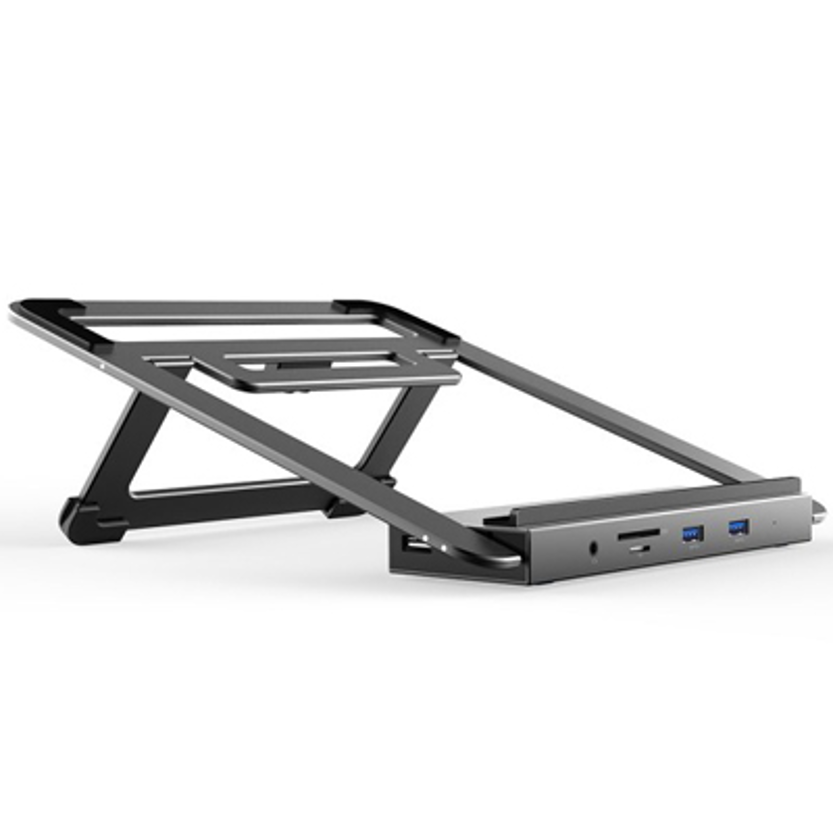
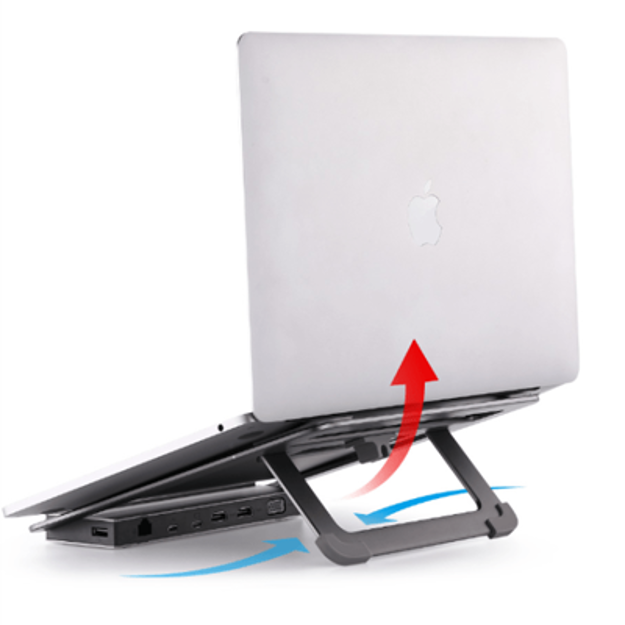
Its die-cast aluminium alloy housing with an integrated stand provides a combination of durability, style, and practical desk organization. At the same time, its thin and compact design makes it convenient to carry when travelling.
The docking station is designed for PCs, laptops, and MacBooks equipped with a compatible USB Type-C port supporting DisplayPort Alternate Mode (DP Alt Mode).
What Is the T-230 12-in-1 USB-C Docking Station?
The T-230 is a multi-function 12-in-1 USB-C docking station designed to expand the connectivity of compatible computers through one USB-C connection.
Rather than connecting different accessories directly to a laptop one by one, a docking station provides a centralized connection point for supported peripherals and displays.
The T-230 combines three important functions through its integrated Type-C connection:
- Data transfer
- Video connectivity
- Power Delivery
This makes it useful for transforming a compatible laptop or MacBook into a more complete desktop-style workstation.
12-in-1 USB-C Docking Station T-230: Key Features
| Feature | T-230 Specification |
| Product | 12-in-1 USB-C Docking Station |
| Model | T-230 |
| Housing | Die-cast aluminium alloy |
| Stand | Integrated stand |
| Data Interface | USB 3.2 Gen 1 |
| Maximum Data Transfer | Up to 5Gbps |
| Video | Ultra HD 4K output |
| Display Expansion | Up to 2 screens |
| Connection | Integrated Type-C cable |
| Power Function | Power Delivery |
| Compatibility | PC, laptop, MacBook with compatible USB-C port |
| Display Requirement | USB-C with DP Alt Mode |
| Design | Thin and compact |
12-in-1 Connectivity Through One USB-C Connection
One of the main advantages of the T-230 is its multi-function USB-C design.
Instead of relying on multiple adapters, users can connect the docking station to a compatible computer using the integrated Type-C cable. The dock then acts as a central connection point for supported peripherals, displays, and power-related functions.
This approach can help reduce cable clutter and make a workstation easier to organize.
For professionals who frequently move between a home office, workplace, meeting room, or travel location, a single docking station can also simplify the process of connecting a laptop to an established workstation.
USB 3.2 Gen 1 with Up to 5Gbps Data Transfer
The T-230 supports USB 3.2 Gen 1 and provides a maximum stated data transfer rate of up to 5Gbps.
This bandwidth can be useful for everyday data-transfer activities involving compatible USB peripherals and storage devices.
However, the 5Gbps specification represents the maximum theoretical interface rate. Actual transfer performance can vary depending on the connected device, host computer, cable, storage hardware, file type, system workload, and other technical factors.
What Does 5Gbps Mean?
A 5Gbps interface can provide considerably more bandwidth than older USB generations. It can therefore be useful for workflows involving external storage, USB peripherals, and other compatible high-speed devices.
Actual performance should not be expected to equal 5Gbps in every real-world situation because data transfer involves protocol overhead and limitations imposed by the connected hardware.
For example, connecting a slower USB device through the docking station does not make that device operate at the full 5Gbps rate.
Ultra HD 4K Video Output
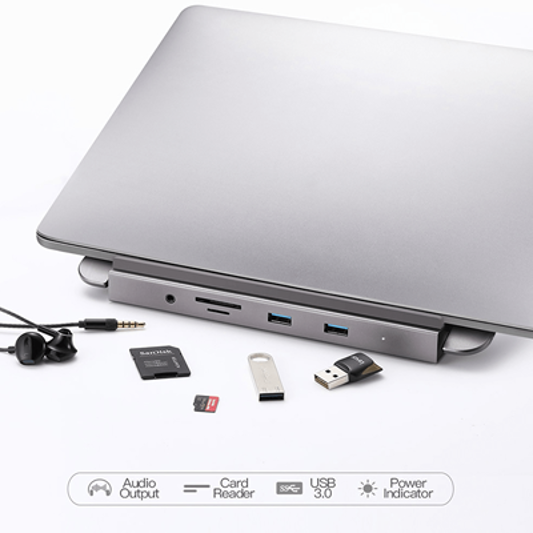
The T-230 supports Ultra HD 4K output, making it suitable for users who want to connect a compatible external display to a laptop or other USB-C computer.
A larger external display can provide additional workspace for productivity applications, documents, spreadsheets, browser windows, design tools, and other desktop activities.
The dock’s video functionality is especially useful for people who prefer a desktop-style setup while continuing to use a laptop as their primary computer.
Dual-Screen Extended Display
The T-230 also supports extending the display to two screens.
A dual-screen setup can allow users to distribute their work across multiple displays rather than constantly switching between windows on one screen.
For example, a user could keep a document or communication application on one display while using the second display for a browser, spreadsheet, design application, or another workflow.
Actual resolution, refresh rate, and supported combinations can depend on the host computer, operating system, USB-C implementation, display interfaces, and other system specifications. The supplied product information confirms 4K output and extension to two screens but does not specify every resolution and refresh-rate combination.
Why DP Alt Mode Matters
The T-230 is specified to work with computers that have a USB Type-C port supporting DP Alt Mode.
DP Alt Mode, or DisplayPort Alternate Mode, allows compatible USB-C connections to carry DisplayPort video signals.
This is particularly important for docking stations with video output. Not every USB-C port supports display output. A USB-C connector by itself does not automatically guarantee video capability.
Therefore, users should verify that their computer’s USB-C port supports DisplayPort Alternate Mode before purchasing or installing the T-230 for external-display use.
Power Delivery Through USB-C
The T-230 also supports Power Delivery, allowing compatible systems to use the integrated Type-C connection for power-related functionality.
This is particularly useful in laptop docking setups because users can potentially reduce the number of connections required at the computer.
However, the supplied specifications do not state the exact Power Delivery wattage, voltage profiles, or current levels of the T-230. Therefore, a specific charging wattage should not be assumed.
Actual Power Delivery performance depends on the dock, host computer, power adapter, cable, and the device’s own charging requirements.
Durable Die-Cast Aluminium Alloy Housing
The T-230 uses a die-cast aluminium alloy housing, giving the docking station a durable and premium physical design.
Aluminium construction is particularly appropriate for a device intended for frequent desk use and travel. It can provide a more robust feel while maintaining the clean appearance expected from modern computer accessories.
The integrated stand adds another practical feature.
Benefits of the Stand Design
The stand can help position the docking station neatly on a desk while providing a defined location for the device.
This can contribute to a more organized workstation by reducing loose adapters and making the dock easier to access.
The combination of aluminium construction and stand functionality makes the T-230 more than just a basic portable USB hub. It is designed as a docking solution that can fit naturally into a permanent workstation while remaining portable.
Thin and Compact Design for Travel
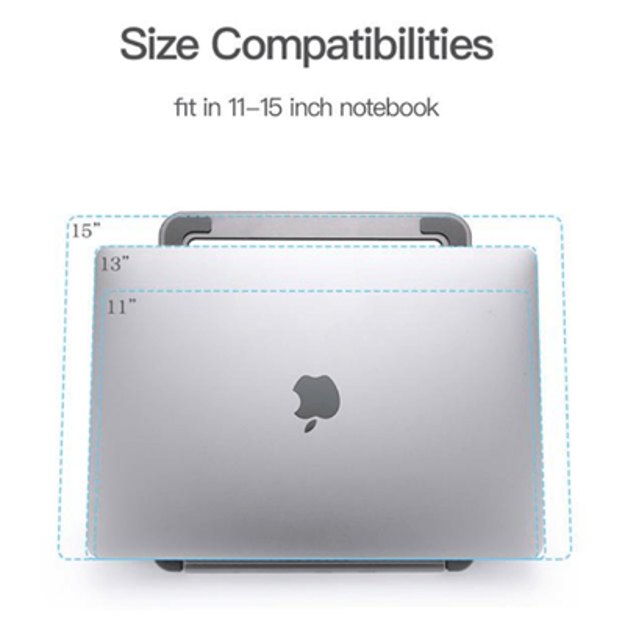
Although the T-230 provides multiple functions, its design is described as thin and compact.
This makes it convenient for users who regularly carry a laptop between locations.
A portable docking station can be useful for:
- Business travel
- Remote work
- Home and office users
- University or educational environments
- Temporary workstations
- Meetings and presentations
- Flexible workspaces
Instead of carrying multiple separate adapters, users can take one docking station and connect their compatible laptop to supported accessories at their destination.
Ideal for Laptop and MacBook Workstations
The T-230 is designed for use with PCs, laptops, and MacBooks equipped with compatible USB Type-C ports supporting DP Alt Mode.
This makes it relevant to a broad range of modern computer setups.
Office Workstation
In an office, the T-230 can act as a central connection point for a laptop-based workstation. Users can connect supported displays and peripherals through the dock rather than repeatedly connecting individual accessories directly to the laptop.
Home Office
For remote workers, the dock can help create a more permanent desktop arrangement around a laptop.
A laptop can remain the primary computer while external displays and compatible peripherals are connected through the docking station.
Creative Workflows
Users working with design, photography, video, or other visually intensive applications may benefit from having additional screen space.
The T-230’s 4K output and two-screen extension capability can support a more spacious visual workspace, subject to the capabilities of the host computer and connected displays.
Business Travel
The compact design makes the T-230 suitable for users who move between offices, meeting rooms, and other locations.
One Integrated Type-C Cable
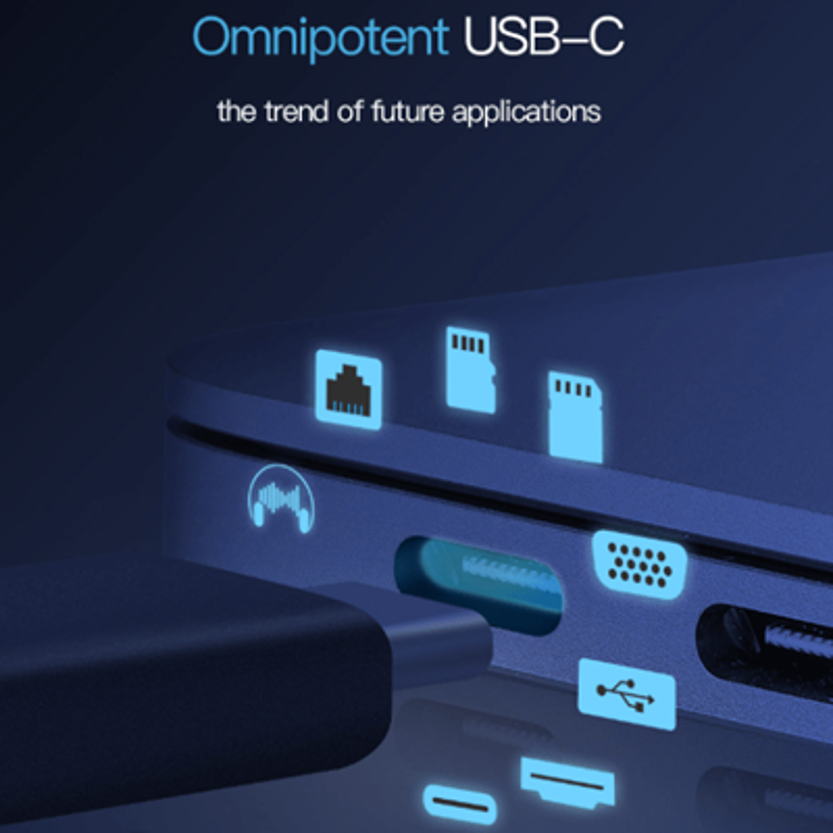
The T-230 is designed around an integrated Type-C cable, providing the primary connection between the docking station and the host computer.
This approach can make setup simpler because the primary connection is already integrated into the dock.
Through this connection, the product specification states that the dock can handle:
Data + Video + Power Delivery
This combination is one of the main reasons docking stations are useful for modern USB-C laptops.
T-230 vs. a Basic USB-C Hub
Although both products can expand connectivity, a docking station can offer a broader workstation-oriented approach.
| Feature | T-230 USB-C Docking Station | Basic USB-C Hub |
| Multi-function USB-C Connection | Yes | Varies |
| USB 3.2 Gen 1 | Yes | Varies |
| Maximum Data Rate | Up to 5Gbps | Varies |
| 4K Output | Yes | Varies |
| Two-Screen Extension | Yes | Varies |
| Power Delivery | Yes | Varies |
| Aluminium Housing | Yes | Varies |
| Integrated Stand | Yes | Usually not specified |
| Compact Design | Yes | Usually |
| DP Alt Mode Requirement | Yes for display functionality | Varies |
The T-230 is therefore positioned more toward users who want to build a complete laptop workstation rather than simply add a few extra USB ports.
How to Set Up the T-230
Setting up the T-230 is straightforward when the host computer meets the required USB-C specifications.
Step 1: Check the USB-C Port
Confirm that the laptop, PC, or MacBook has a USB Type-C port that supports DP Alt Mode if external display functionality is required.
Step 2: Connect the Dock
Connect the T-230’s integrated Type-C cable to the compatible USB-C port on the host computer.
Step 3: Connect Displays
Connect compatible external displays to the appropriate video outputs on the docking station.
For dual-screen use, make sure the computer and operating system support the desired multi-display configuration.
Step 4: Connect Peripherals
Attach compatible USB devices and other peripherals to the available docking-station ports.
Step 5: Connect Power
Use the appropriate Power Delivery setup where required and supported.
Because the exact PD wattage is not specified in the supplied information, users should verify the required power specifications for their computer and setup.
Step 6: Configure the Displays
Once the displays are detected, use the operating system’s display settings to select whether screens should mirror or extend the desktop.
Important Compatibility Considerations
Before purchasing the T-230, users should check several technical details.
USB-C Does Not Always Mean Display Output
A USB-C connector can support different functions depending on the host device. For the T-230’s display features, DP Alt Mode support is required.
Check the Computer’s Multi-Display Capability
The docking station supports extension to two screens, but the host computer’s hardware and operating system also play an important role in determining the actual display configuration.
Check 4K Requirements
The product supports Ultra HD 4K output, but users should confirm the exact resolution and refresh-rate requirements of their monitor and computer setup.
Check Power Requirements
The T-230 supports Power Delivery, but the exact PD wattage is not provided in the supplied specification. Users requiring a specific charging level should confirm the manufacturer’s detailed electrical specifications.
Best Practices for Using a USB-C Docking Station
Use Compatible Cables
For high-speed data and video applications, use cables appropriate for the required USB and display capabilities.
Keep the Dock Accessible
Positioning the T-230 where its ports remain accessible can make it easier to connect and disconnect peripherals.
Check Display Settings
For two-screen setups, configure the operating system for extended displays when a larger workspace is required.
Keep Drivers and Operating Systems Updated
Display and USB functionality can depend partly on the host system’s operating system and drivers. Keeping supported software updated can help maintain compatibility.
Avoid Assuming All USB-C Ports Are Identical
Always verify the specifications of the computer’s USB-C port. The presence of a USB-C connector alone does not confirm support for DP Alt Mode or every feature offered by a docking station.
Frequently Asked Questions
What is the T-230?
The T-230 is a 12-in-1 USB-C Docking Station designed to expand connectivity for compatible PCs, laptops, and MacBooks.
What USB standard does the T-230 use?
The T-230 supports USB 3.2 Gen 1 and offers data transfer speeds of up to 5Gbps.
Does the T-230 support 4K output?
Yes. The product specifications state that the T-230 supports Ultra HD 4K output.
Can the T-230 connect two displays?
Yes. The T-230 supports extending the display to two screens, subject to the capabilities of the host computer and connected display configuration.
Does the T-230 support Power Delivery?
Yes. Power Delivery is one of the functions provided through the integrated Type-C connection.
Does every USB-C laptop work with the T-230?
The supplied specification states compatibility with PCs, laptops, and MacBooks that have a USB Type-C port supporting DP Alt Mode. Users should verify their computer’s USB-C specifications before purchasing.
What is DP Alt Mode?
DisplayPort Alternate Mode allows compatible USB-C connections to transmit DisplayPort video signals. It is important for USB-C docking stations that provide external display output.
Is the T-230 portable?
Yes. Its thin and compact design is intended to make it convenient to carry while travelling.
What is the T-230 housing made from?
The docking station features a durable die-cast aluminium alloy housing and includes a stand.
Does the T-230 transfer data at exactly 5Gbps?
No. 5Gbps is the maximum stated interface data rate. Real-world transfer speeds depend on the host system, connected device, cable, storage hardware, workload, and other factors.
Conclusion
The 12-in-1 USB-C Docking Station T-230 is designed to turn a compatible USB-C laptop, PC, or MacBook into a more versatile workstation.
Its combination of USB 3.2 Gen 1 connectivity, up to 5Gbps data transfer, Ultra HD 4K output, two-screen extension, Power Delivery, and an integrated Type-C cable provides a practical foundation for modern work setups.
The die-cast aluminium alloy housing and integrated stand add durability and desk-friendly functionality, while the thin and compact construction makes the dock suitable for travel and flexible work environments.
For users who want to connect displays and compatible peripherals through a single USB-C docking solution, the T-230 offers a combination of connectivity, portability, and workstation-focused functionality. As with any USB-C dock, checking DP Alt Mode support and the host computer’s display and power capabilities is essential before deployment.